App & API Protector
The App & API Protector API (generally referred to as the AppSec API) is the single largest API on the Akamai platform, and its associated PowerShell module is similarly enormous, encompassing 216 functions. This guide will give you an overview of how to find the most common areas of the API, which hopefully you can adapt to other areas of the AppSec API as required.
Name and Version Expansion
Similar to the Property Manager module, we have added support for name and version expansion in the AppSec module. This means that you can use -ConfigName and -PolicyName parameters in place of -ConfigID and -PolicyID, which should make it much easier to perform operations. Similarly, when working with the -VersionNumber parameter, you can specify the version as an integer, or use the keywords latest, staging, or production to refer to the latest version, the staging-active version, or the production-active version respectively.
You can also use the same keywords with the
-CreateFromVersionparameter ofNew-AppSecConfigurationVersion.
Configuration CRUD Operations
AAP operations are typically done at the configuration level. A configuration holds all of your policies, settings etc., and is the unit which is versioned and deployed, analogous to a property. The following commands are used to work with configurations and their versions.
| Command | Description |
|---|---|
| New-AppSecConfiguration | Create a new configuration. |
| Get-AppSecConfiguration | Retrieve a configuration by ID or name, or list all configurations. |
| Rename-AppSecConfiguration | Rename a configuration. |
| Remove-AppSecConfiguration | Delete a configuration. |
| Deploy-AppSecConfiguration | Activate a configuration to staging or production. |
| New-AppSecConfigurationVersion | Create a new version of a configuration. |
| Get-AppSecConfigurationVersion | Retrieve a specific version of a configuration, or list all versions. |
| Remove-AppSecConfigurationVersion | Delete a specific version of a configuration. |
| Export-AppSecConfiguration | Export a configuration to a PSCustomObject, which can then be converted to JSON. |
| Compare-AppSecConfigurationVersions | Compare two versions of a configuration and return the differences. |
Working with Hostnames
Working with hostnames is probably one of the most common API operations you will encounter with AppSec, and there are PowerShell functions to cover every aspect is this.
Coverage
You can get a list of all hostnames in your account, and their security status by running:
$Coverage = Get-AppSecHostnameCoverageThis will give you a list of every hostname in your account, and if it is covered by a security configuration. If this is the case you can also see which configuration (with both name and ID), and its version, and even which policy or policies apply. For example:
configuration  : @{id=12345; name=MyConfig; version=31}
hasMatchTarget : True
hostname       : www.example.com
policyNames    : {MyPolicy}
status         : covered
Selected and Selectable and Available. Oh my.
There are two functions you can use to determine which hostnames are currently included in your configuration, and which additional hostnames are available to it. Their names are quite similar, so it's important to understand the difference.
Get-AppSecSelectedHostnames will return a list of hostnames which are currently included in your configuration. The data format might look a little strange, but has been kept this way to match the input of the reciprocal Set-AppSecSelectedHostnames command.
Get-AppSecSelectableHostnames will return a list of all hostnames available to your configuration, including those which it already protects. This is essentially any active hostname within the same contract and group as your configuration.
Both of the commands above related specifically to an existing configuration, which you specify by ConfigName/ConfigID and VersionNumber as usual.
Get-AppSecAvailableHostnames, on the other hand, will tell you those hostnames which could be added to a new configuration. As such, this command does not use -ConfigName etc., but instead requires a -GroupID and -ContractID.
Adding Hostnames
You can add a hostname to a configuration in several ways.
First, you can use Add-AppSecSelectedHostnames to add one or more hostnames to a configuration in addition to those which it already protects. The format of this command is a little convoluted, which we are working on, but for now it looks like this.
$Body = '{
  "hostnameList": [
    {
      "hostname": "*.example.net"
    },
    {
      "hostname": "example.com"
    },
    {
      "hostname": "m.example.com"
    }
  ]
}'

$Body | Add-AppSecSelectedHostnames -ConfigName "MyConfig" -VersionNumber latest
Or if you prefer, you can do this with purely PowerShell objects, like this:
$Body = @{
    hostnameList = @(
        [PSCustomObject]@{ hostname = "*.example.net" },
        [PSCustomObject]@{ hostname = "example.com" },
        [PSCustomObject]@{ hostname = "m.example.com" }
    )
}

$Body | Add-AppSecSelectedHostnames -ConfigName "MyConfig" -VersionNumber latest
Updating Hostnames
Alternatively, you can use Set-AppSecSelectedHostnames to replace the entire list of hostnames in a configuration. The input format is the same as above, but the command will remove any hostnames not included in the request body.
In this mode, it is likely more common to do this directly in the shell, though doing it with JSON is still fine. Both are demonstrated below.
$Hostnames = Get-AppSecSelectedHostnames -ConfigName "MyConfig" -VersionNumber latest
"one.example.com", "two.example.com" | ForEach-Object {
    $Hostnames.hostnameList += [PSCustomObject] @{ hostname = $_ }
}
$Hostnames | Set-AppSecSelectedHostnames -ConfigName "MyConfig" -VersionNumber latest
Get-AppSecSelectedHostnames -ConfigName "MyConfig" -VersionNumber latest | ConvertTo-Json -Depth 10 | Out-File hostnames.json
# Edit hostnames.json in your text editor
Get-Content -Raw hostnames.json | Set-AppSecSelectedHostnames -ConfigName "MyConfig" -VersionNumber latestRemoving Hostnames
Hostnames are removed from your configuration in precisely the same way as they are added, but using the Remove-AppSecSelectedHostnames command. The input format is the same as above, and you can use either JSON or PowerShell objects.
$Body = @{
    hostnameList = @(
        [PSCustomObject]@{ hostname = "removeme.example.com" },
        [PSCustomObject]@{ hostname = "removemetoo.com" }
    )
}
$Body | Remove-AppSecSelectedHostnames -ConfigName "MyConfig" -VersionNumber latest
Or, in JSON format.
$Body = '{
  "hostnameList": [
    {
      "hostname": "removeme.example.com"
    },
    {
      "hostname": "removemetoo.com"
    }
  ]
}'
$Body | Remove-AppSecSelectedHostnames -ConfigName "MyConfig" -VersionNumber latest
Config-Level Objects
Many objects in an AAP configuration sit at the config level, and can be managed in PowerShell. The table below summarises the most common.
| Feature | Create | Read | Update | Delete |
|---|---|---|---|---|
| Match targets | New-AppSecMatchTarget | Get-AppSecMatchTarget | Set-AppSecMatchTarget | Remove-AppSecMatchTarget |
| Custom rules | New-AppSecCustomRule | Get-AppSecCustomRule | Set-AppSecCustomRule | Remove-AppSecCustomRule |
| Rate policies | New-AppSecRatePolicy | Get-AppSecRatePolicy | Set-AppSecRatePolicy | Remove-AppSecRatePolicy |
| Reputation profiles | New-AppSecReputationProfile | Get-AppSecReputationProfile | Set-AppSecReputationProfile | Remove-AppSecReputationProfile |
| Behavioral DDoS profiles | New-AppSecBehavioralDDOS | Get-AppSecBehavioralDDOS | Set-AppSecBehavioralDDOS | Remove-AppSecBehavioralDDOS |
| Custom deny actions | New-AppSecCustomDenyAction | Get-AppSecCustomDenyAction | Set-AppSecCustomDenyAction | Remove-AppSecCustomDenyAction |
Generally the request body for these objects is complex, and thus the New- commands do not support individual parameters. Generally, the simplest option to get a sample request body is to create an object in the AAP UI (on any account and in any config), then retrieve it with the associated Get- command. You can then either edit the object in place and pipe it to the New- command, or convert it to JSON and edit the file, which might be easier for complex objects.
For information on working with JSON in PowerShell, see Working with Files.
Policy Operations
All commands which operate at the Policy level contain the word "Policy" in their name, which you can use to differentiate between config-level operations or shared objects, and applying those objects at the policy level. For instance, if you wish to create a new rate policy you would use the New-AppSecRatePolicy command. If you wish to apply that policy to a configuration you would use Set-AppSecPolicyRatePolicy.
There are too many policy level commands to list all of them here (96!), but in general they fall into 2 categories:
- those which get or sec actions for an external object, e.g.
Set-AppSecPolicyAttackGroup - those which get or set an entire object, e.g.
Set-AppSecPolicyAttackGroupExceptions
Action Policy Functions
For example, if you wanted to get the attack group actions for your policy you might run
Get-AppSecPolicyAttackGroup -ConfigName "MyConfig" -VersionNumber latest -PolicyName "MyPolicy"

action group
------ -----
alert  POLICY
alert  WAT
alert  PROTOCOL
alert  SQL
alert  XSS
alert  CMD
alert  LFI
alert  RFI
alert  PLATFORM
alert  OUTBOUND
Then, let's say you wanted to change the action for a single group, you could run
Set-AppSecPolicyAttackGroup -ConfigName "MyConfig" -VersionNumber latest -PolicyName "MyPolicy" -GroupName "SQL" -Action "block"The
-Actionparameer typically takes the valuesalert,deny, ornone, but it can also take a condition action definition, which is commonly in the formdeny_custom_123456
If you wanted to update all actions to 'deny', then you could also take advantage of PowerShell's looping capabilities.
$groups = Get-AppSecPolicyAttackGroup -ConfigName "MyConfig" -VersionNumber latest -PolicyName "MyPolicy"
foreach ($group in $groups) {
    Set-AppSecPolicyAttackGroup -ConfigName "MyConfig" -VersionNumber latest -PolicyName "MyPolicy" -GroupName $group.group -Action "deny"
}
Or, even cooler than that, take advantage of the new pipeline features we added in Akamai PowerShell version 3.0.
Get-AppSecPolicyAttackGroup -ConfigName "MyConfig" -VersionNumber latest -PolicyName "MyPolicy" | Set-AppSecPolicyAttackGroup -ConfigName "MyConfig" -VersionNumber latest -PolicyName "MyPolicy" -Action "deny"Lots of PowerShell commands can take pipeline input. Normally, if the piped object is an array, PowerShell will run its command once per item of the array. So, in the above example you pipe in an array of 10 attack groups, and PowerShell makes 10 API calls, one at a time, to complete the task. There are other functions which take an array input and make a single API call, e.g.
Set-PropertyHostname, but multiple executions with a piped array is the norm.
Object Policy Functions
If your function deals with complex options, then you would interact with it just as you would with property rules. For example:
$SlowPost = Get-AppSecPolicySlowPost -ConfigName "MyConfig" -VersionNumber latest -PolicyName "MyPolicy"Then you can update the object locally, and pipe back.
$SlowPost.slowRateThreshold.rate = 100
$SlowPost | Set-AppSecPolicySlowPost -ConfigName "MyConfig" -VersionNumber latest -PolicyName "MyPolicy"
You can also manage these objects as JSON files if you wish, like this:
Get-AppSecPolicySlowPost -ConfigName "MyConfig" -VersionNumber latest -PolicyName "MyPolicy" | ConvertTo-Json -Depth 10 | Out-File slowpost.json
# Update JSON in your text editor
Get-Content -Raw slowpost.json | Set-AppSecPolicySlowPost -ConfigName "MyConfig" -VersionNumber latest -PolicyName "MyPolicy"
When using
Get-Contentto pull the contents of a JSON file, make sure to use the-Rawparameter to read your file as a single string, rather than an array.
When using a
-Bodyparameter for an Akamai command, as we did above, you can use a JSON string or a PSCustomObject. Both are fine.
Activating
Activating your configuration is very simple in PowerShell, though we would recommend that first you set version notes.
Set-AppSecVersionNotes -ConfigName "MyConfig" -VersionNumber latest -Notes "Updated SQL attack group to deny"Then activate in the usual way.
Deploy-AppSecConfiguration -ConfigName "MyConfig" -VersionNumber latest -Network STAGING -NotificationEmails mail@example.com, bob@example.comNote: the
-NotificationEmailsparameter takes an array of strings, which you can define as above or like as below. If you have a single item, you can treat the parameter as a standard string.
Deploy-AppSecConfiguration -ConfigName "MyConfig" -VersionNumber latest -Network STAGING -NotificationEmails @( 'mail@example.com', 'bob@example.com')AAP vs AAP/ASM
One area which consistently trips up users of the AppSec API is the difference between the App & API Protector (AAP) and the App & API Protector with Advanced Security Manager (AAP/ASM) products. Both use the same API, and the name would is so similar that it is easy to get confused. The different was easier to understand previously when AAP/ASM was known as Kona Site Defender, and AAP was known as Web Application Protector.
For our purposes, the two work in basically the same way, but for a few key differences:
- With AAP/ASM you can create as many configurations as your contract allows. With AAP you can only have one configuration in your account.
- Several commands are scoped to AAP only, specifically those dealing with policy-level selected hostnames. This is documented on each API endpoint, but the product association can be misleading. For example, if you were to run Get-Help on the
Add-AppSecPolicySelectHostnamescommand, you can see links at the bottom.
Get-Help Add-AppSecPolicySelectHostnames

# ... some fascinating, well written content we will skip ...

RELATED LINKS
    User Guide: Overview https://techdocs.akamai.com/powershell/docs/overview
    API Reference https://techdocs.akamai.com/application-security/reference/put-selected-hostnames-per-config
Of interest here is the API reference. Open this in a browser and you will see the following:
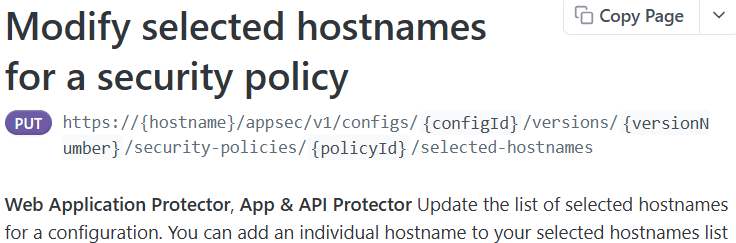
The bold text before the description tells you which products this endpoint applies to. Contract that with another endpoint and you can see the difference.
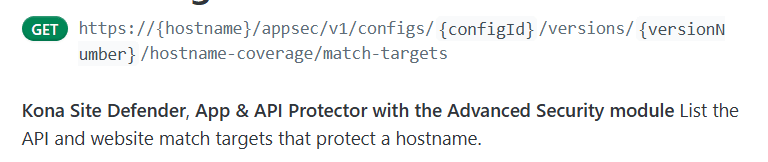
Any endpoint which lists only App & API Protector, specifically without the Advanced Security Module is not one you can use with a full AAP/ASM configuration, which are far more common. If you attempt to use one of these endpoints in error, you will receive an error like this:
 Get-AppSecPolicySelectedHostnames -ConfigName MyConfig -VersionNumber latest -PolicyName MyPolicy
Invoke-AkamaiRequest: HTTP 403 - Unauthorized Access/Action - Feature not available in this product. See $Error[0].exception.data for more
information.
Advanced Piping
In version 3.0 of the Akamai modules, we hugely expanded support for piped elements. This can hugely simplify the use of the many (many) commands in the AppSec module.
Note: this feature currently only supports
Get-commands, for the most part. Other functions will have this feature added shortly.
For example, for commands related to a configuration version, such as Get-AppSecPolicy, Get-AppSecRatePolicy and so on, you can pipe in a configuration version object, rather than specifying the -ConfigName and -VersionNumber parameters. For example, let's say we retrieve the latest version of a configuration:
$ConfigVersion = Get-AppSecConfigurationVersion -ConfigName "MyConfig" -VersionNumber latestWe can then use that as the input to other commands, like this:
$ConfigVersion | Get-AppSecPolicy
$ConfigVersion | Get-AppSecRatePolicy
Get-AppSecCustomRuledoes not require a-VersionNumberparameter (we have no idea why), but it will work in the same way regardless. When piping an object PowerShell picks out the parameters it needs from the piped object, and ignores the rest. So, in this case, it will use the-ConfigNameparameter from the piped object, and ignore the-VersionNumberparameter.
The same holds true for policy-level commands, which can take a policy object as input. For example, let's say we retrieve a policy from our configuration:
$Policy = Get-AppSecPolicy -ConfigName "MyConfig" -VersionNumber latest -PolicyName "MyPolicy"We can then run policy-level commands like this:
$Policy | Get-AppSecPolicyAttackGroup
$Policy | Get-AppSecPolicyRatePolicy
Note: If you are also using authorization parameters, such as
-EdgeRCFileor-AccountSwitchKey, you will need to include those in the piped command as well, since they are not part of the piped object. For example:
$Policy | Get-AppSecPolicyAttackGroup -EdgeRCFile "path\to\.edgerc" -AccountSwitchKey "myAccountSwitchKey"
$Policy | Get-AppSecPolicyRatePolicy -EdgeRCFile "path\to\.edgerc" -AccountSwitchKey "myAccountSwitchKey"
But, this could be made easier by the user of splatting, like this:
$AuthParams = @{
    EdgeRCFile = "path\to\.edgerc"
    AccountSwitchKey = "myAccountSwitchKey"
}
$Policy | Get-AppSecPolicyAttackGroup @AuthParams
$Policy | Get-AppSecPolicyRatePolicy @AuthParams
See our appendix on splatting here for more information on this feature: Splatting.