Splatting
PowerShell is quite a verbose language, typically relying on descriptive command names with equally descriptively named parameters. This makes it very easy to read and understand, but it can lead to single commands being enormous.
Consider the command to create a new property:
New-Property -Name my-new-property -RuleFormat latest -ProductID Fresca -ClonePropertyName my-golden-template -ClonePropertyVersion latest -GroupID 123456 -ContractID 1-2AB34CAs you can see, all but the largest screens would line-wrap this command, which is generally considered bad practice in most programming languages. Code layout is quite a broad topic, and well beyond this course, but PowerShell offers a feature called "splatting" which allows you to pass parameters to a command in a more readable way.
Splatting involves creating a hashtable (similar to a dictionary or object in other languages) with parameter names as keys, and parameter values as values. You then pass the hashtable to the command using the @ symbol.
For example, the previous command could be rewritten using splatting as follows:
$NewPropertyParams = ${
    Name = "my-new-property"
    RuleFormat = "latest"
    ProductID = "Fresca"
    ClonePropertyName = "my-golden-template"
    ClonePropertyVersion = "latest"
    GroupID = 123456
    ContractID = "1-2AB34C"
}

New-Property @NewPropertyParams
This allows you to split your parameters across many lines, making it much easier to read and understand. It also allows you to reuse the same set of parameters for multiple commands, or to build up a set of parameters dynamically in your code.
Note: When you declare your hashtable, your variable name starts with $ as usual ($MyVariable), despite the use of @ when declaring the actual hashtable. But when you use the hashtable to splat parameters, it starts with an @. This is crucial, as trying to splat a hashtable using the $ symbol will likely result in an error, or at the very least behave in an unexpected way.
Multiple Splats
A less well-known feature is that you can use multiple splats in a single command. This allows you to split your parameters into logical groups, and then combine them when calling the command. For example, let's say you define your authentication parameters in one hashtable, and your new property parameters in another.
$AuthParams = @{
    EdgeRCFile = '~/another.edgerc'
    Section = 'section2'
    AccountSwitchKey = 'F-AC-123456:1-2AB34C'
}

$NewPropertyParams = @{
    Name = "my-new-property"
    RuleFormat = "latest"
    ProductID = "Fresca"
    ClonePropertyName = "my-golden-template"
    ClonePropertyVersion = "latest"
    GroupID = 123456
    ContractID = "1-2AB34C"
}

New-Property @AuthParams @NewPropertyParams
You can then reuse the same authentication parameters for multiple commands, without having to repeat them each time.
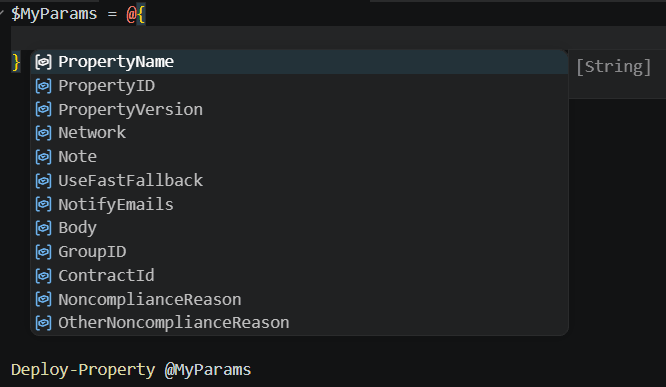
Using Intellisense
Modern text editors, such as Visual Studio Code, support auto-filling fields based on the schema. If you use splatting in PowerShell, a good practice is to write the command first, referencing an empty hashtable, then go back to the hashtable to fill in the values. You should then see suggestions for the parameter names, as VS Code will connect the command to the hashtable.