Introduction
This training couse will provide you with a working knowledge of PowerShell and how it can be used to
What is PowerShell?
PowerShell (opens in a new tab) is an open-source interactive shell, originally written for Windows only but made cross platform in 2016. It offers many features over and above the default shells provided with operating systems, and can be used as both a shell and advanced scripting language.
How do I Install it?
PowerShell can be installed on Windows, Linux and MacOS, by various methods, but will required admin/sudo rights to install. Choose whichever method suits you best.
'Windows PowerShell' comes pre-installed on all Windows operating systems. It is perfectly functional, but you should ideally install the latest version (> 7.6) as it comes with many, many improvements.
Manual Package Installation
You can install PowerShell by using its published package from Github. Just navigate to this page and click on the most recent release under Releases on the right side
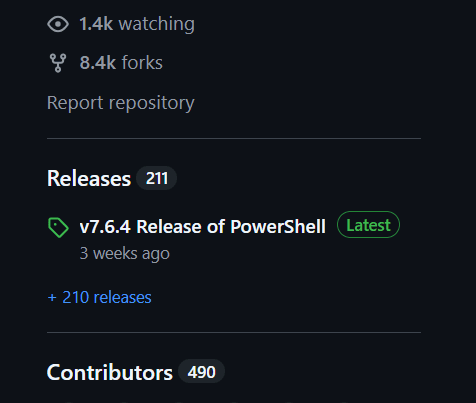
When choosing a package you must select the right one for your operating system.
| Operating System | CPU Type | Package |
|---|---|---|
| Windows | all | PowerShell-X.X.X-win-x64.msi |
| Mac | Intel | powershell-X.X.X-osx-x64.pkg |
| Mac | Apple Silicon | powershell-X.X.X-osx-arm64.pkg |
Simply download and run the package to install.
On MacOS you may need to allow the package to run in your Security & Privacy System Preferences.
Winget
For Windows users, Winget is an extremely simple way to install PowerShell. Simply run the following command in an elevated shell:
winget install Microsoft.PowershellHomebrew
For MacOS users, Homebrew is an extremely simple way to install PowerShell.
If you do not have Homebrew installed, it is highly recommended. You can install it here: https://brew.sh/ (opens in a new tab)
Once Homebrew is up and running, simply run the following command in a shell:
brew install powershellLinux
For Linux users, the installation method will depend on your distribution. This page details the available options
Running PowerShell as your shell of choice in Linux is perfectly feasible, but it can be tricky to get the latest releases as they are sometimes not included in the apt or yum repositories included with your distro.
How do I run it once it is installed?
Once installation is complete, you can run PowerShell in the following ways
Windows
PowerShell 6+ and the old "Windows PowerShell" (version 5.1) live side-by-side on your OS, so must be run separately. Once PowerShell 6+ is installed, you can run it by searching for "PowerShell" in the start menu, or by running pwsh in a command prompt or Windows PowerShell shell.
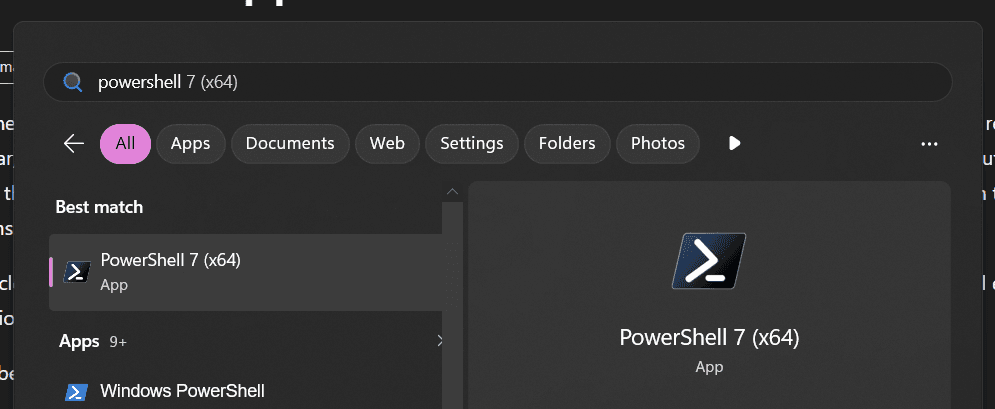
Later versions of PowerShell run with a black background by default, whereas the old Windows PowerShell runs with a blue background. You can always check which version is running by typing
$PSVersionTablein the shell.
MacOS
Once PowerShell is installed, you can run it by searching for "PowerShell" in Spotlight, or by running pwsh in a terminal.
The default background color for PowerShell in Terminal is white, which looks horrible with the default PowerShell colour scheme. Switch to a different color profile in Terminal, such as Pro.
Linux
Simply run pwsh in a terminal.
Terminal choice
While choosing which terminal to use is well beyond this course, we recommend using Windows Terminal on Windows, and iTerm2 on MacOS. Both of these terminals are free, and offer many features over the default terminals provided with the OS.
You can also completely customize your PowerShell experience in the same way as you can with oh-my-zsh, by using the oh-my-posh (opens in a new tab) module.
If using Terminal on a Mac you should also consider a different colour scheme, as the default white background is not ideal for PowerShell. You can change this in Terminal Preferences > Profiles > Colors, and find a huge list of downloadable colour schemes here (opens in a new tab). Typically, the darker colour schemes work best with PowerShell, but it is largely up to you.