Prerequisites
In order to get the most from this course, you need to install a few small applications on your own system. You could do this all in a Docker container if you so choose, but leaving you with the tools to continue working with PowerShell is one of the goals of the course. The requirements differ slightly between MacOS and Windows, but there is no reason you can't work with PowerShell in any supported OS.
MacOS
Homebrew
Homebrew is a package manager for MacOS which is extremely useful in managing installed binaries on your Mac. The initial setup can take some time, and if there are issues they can be tricky to troublshoot, so make sure to run this well in advance of the class.
Check homebrew is installed already
where brewInstall homebrew
/bin/bash -c "$(curl -fsSL https://raw.githubusercontent.com/Homebrew/install/HEAD/install.sh)"iTerm2
The built-in Mac Terminal app is a tried and true companion for developers, but in recent years has suffered somewhat from neglect. iTerm2 is a modern replacement for the built-in terminal, and is highly recommended for anyone working with any shell commands on a Mac.
Windows
There are no real prerequisites for Windows, but we highly recommend installing Windows Terminal. You can install it like this:
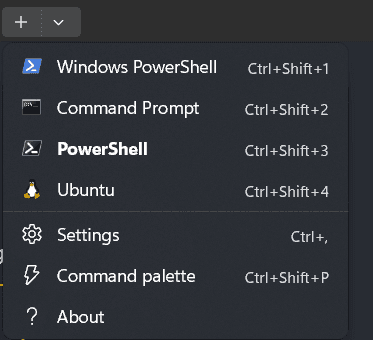
winget install --id Microsoft.WindowsTerminalOnce you've installed both Terminal and the latest version of PowerShell you should be able to add tabs with either the older version of Windows PowerShell (5.1) or the latest version when required, even running them side by side if necessary.
Shell Customization
While far beyond the scope of this course, you may be interested in customizing your shell. This can be achieved using (Oh My Posh)[https://ohmyposh.dev/ (opens in a new tab)] which is available for any platform which runs PowerShell. The options for customization are literally endless, but there are many predefined themes you can choose from.
If you do use Oh My Posh, you will also likely need a "Nerd" font, which contain many symbols common to sofware development. You can find a list of these fonts at Nerd Fonts (opens in a new tab). Once you've downloaded and installed a Nerd font, you can configure your terminal to use it.